

Step 1: Create an installed package
In SFMC, click your profile icon in the top right and select Setup, then go to Apps → Installed Packages and click New. Name the package something recognizable, such asTatango Send Message Activity.
Step 2: Add an API Integration component
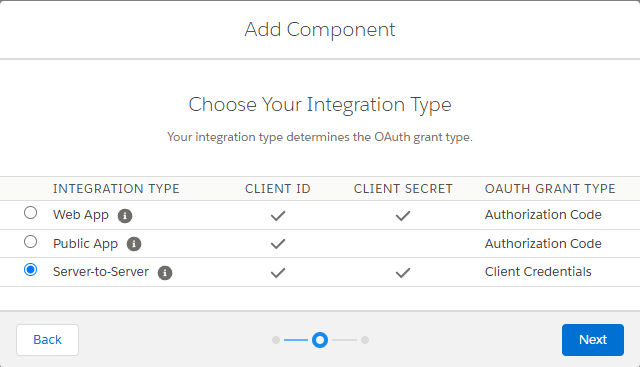
Open the package and click Add Component. Select API Integration, then the Server-to-Server integration type.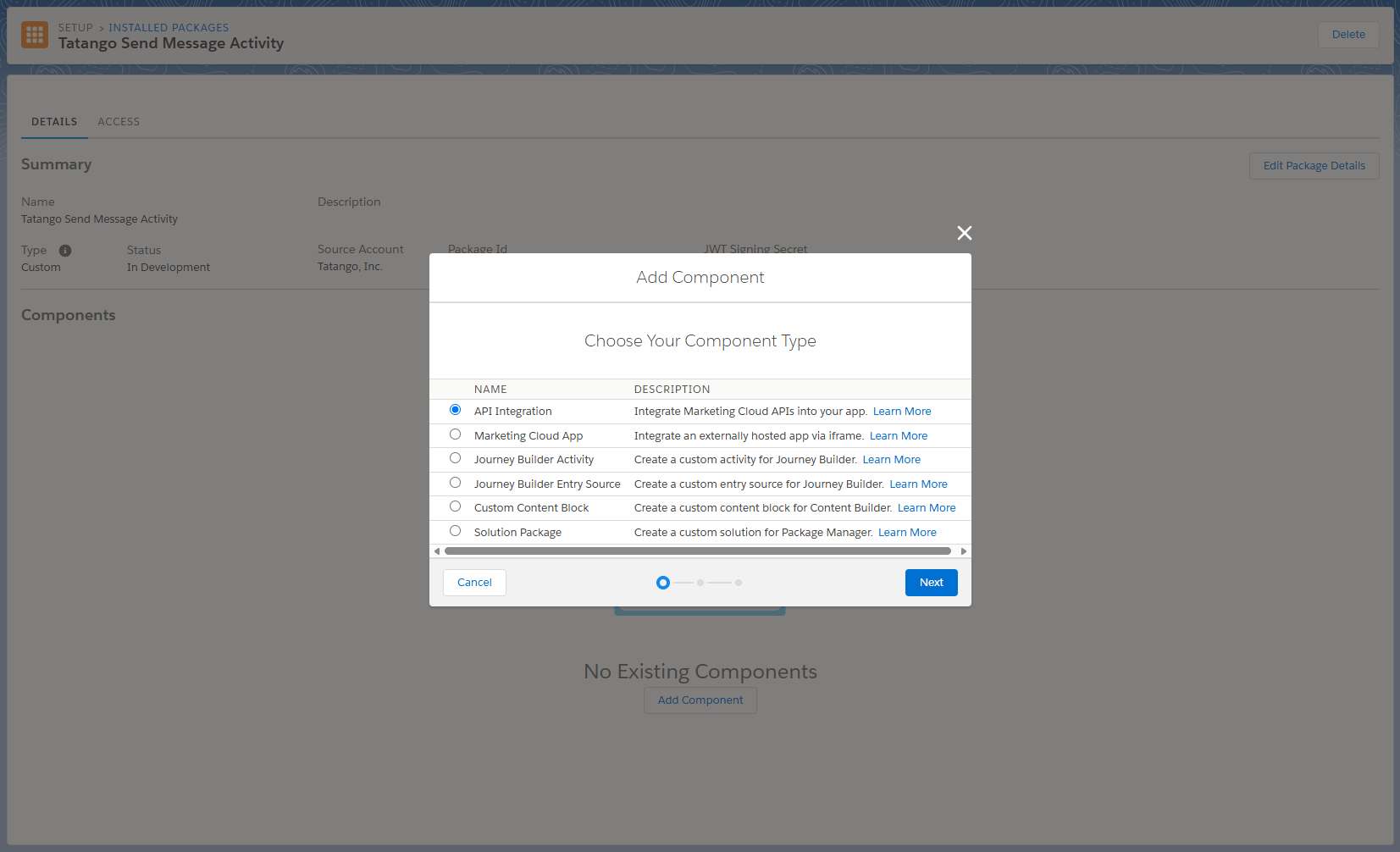
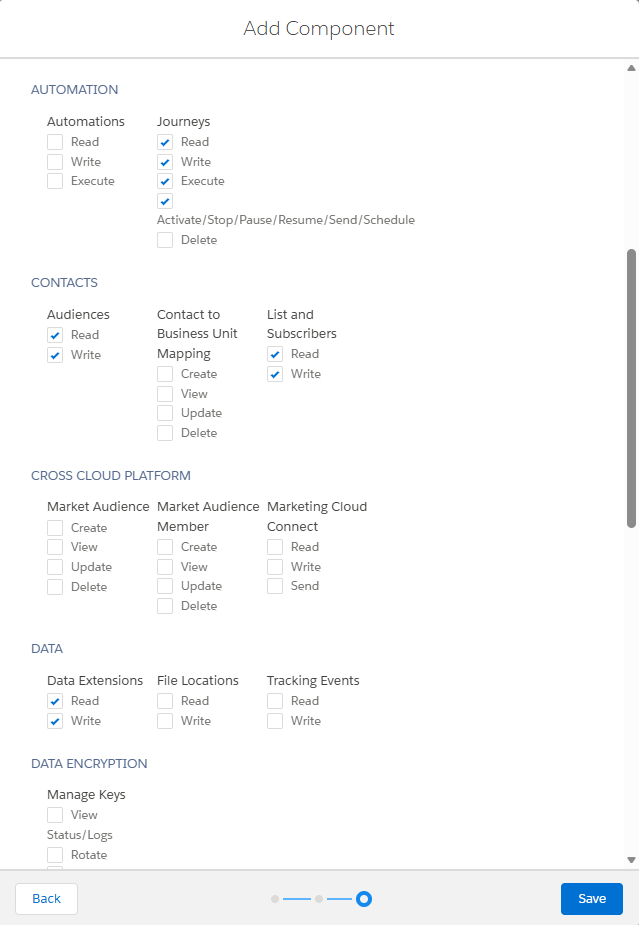
- Client Id
- Client Secret
- Authentication Base URI
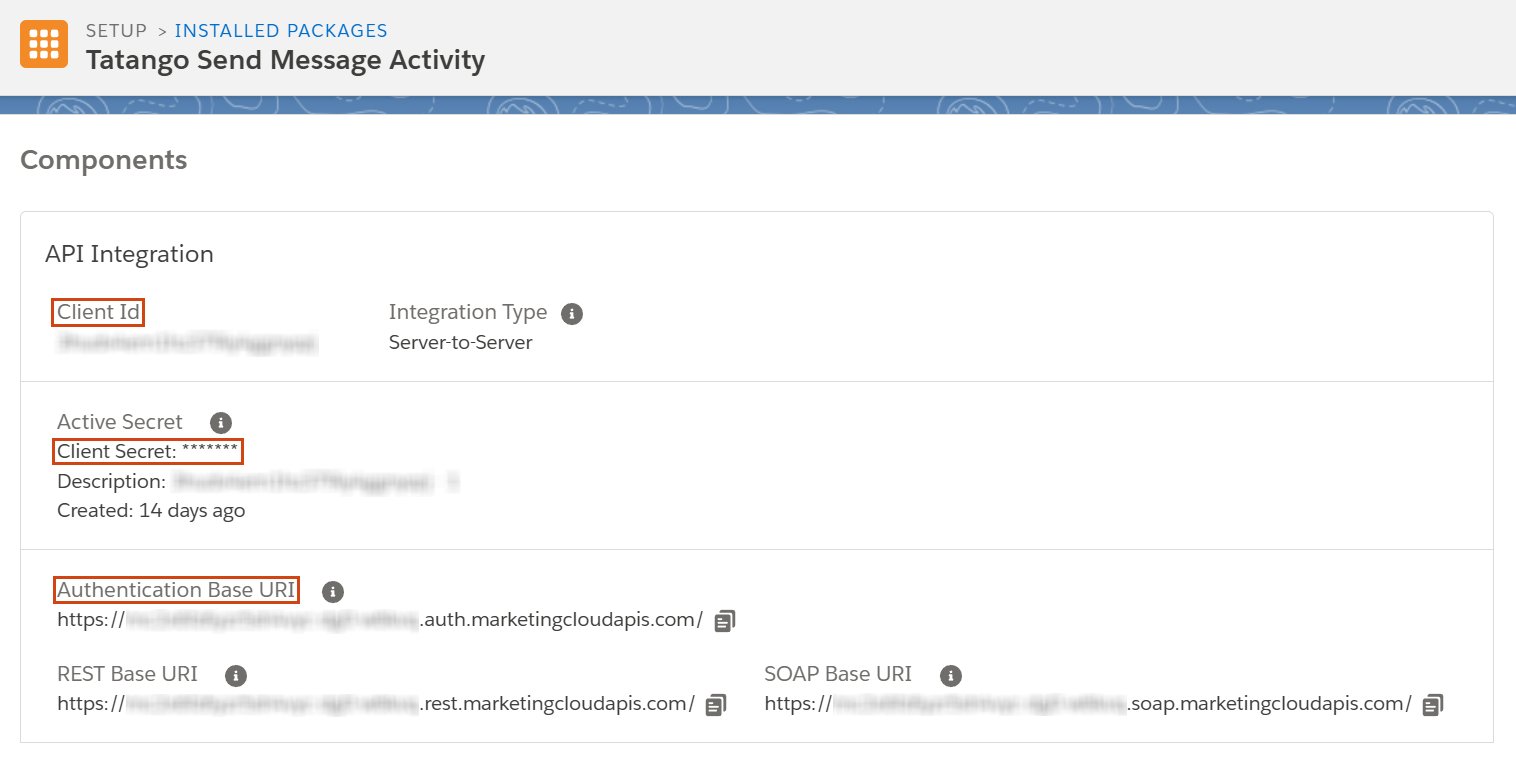
Where the Client Id, Client Secret, and Authentication Base URI live
Step 3: Add the Journey Builder activity
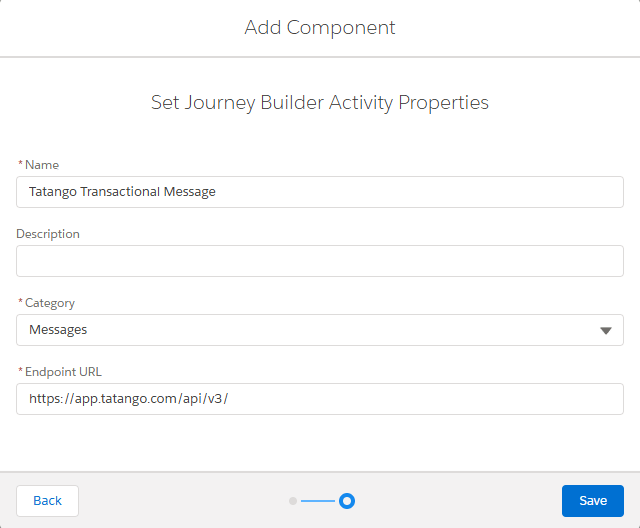
In the same package, click Add Component again and select Journey Builder Activity. Set:- Category: Messages
- Endpoint URL:
https://app.tatango.com/api/v3/
Step 4: Import the Tatango data extensions
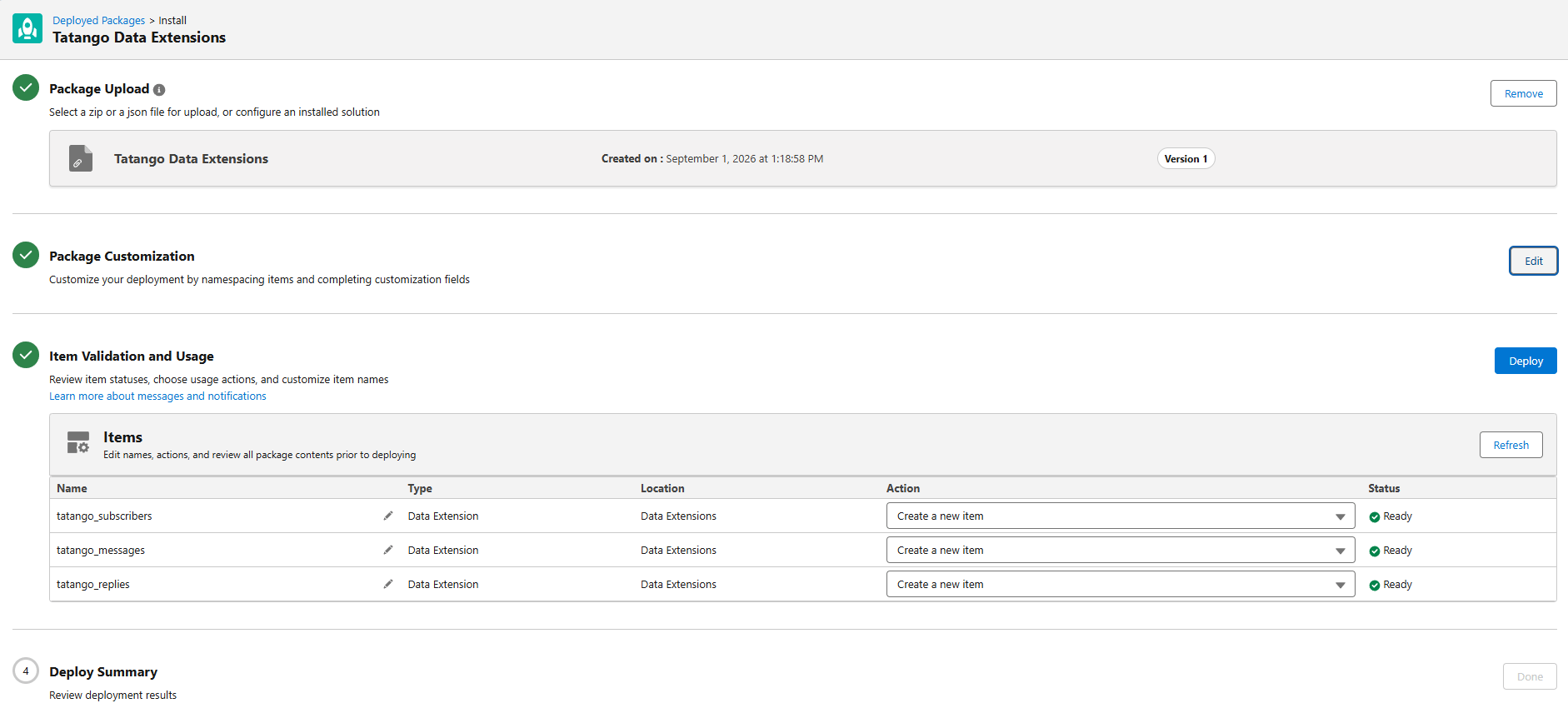
The integration tracks message, reply, and subscriber data in three data extensions. Install them from the deployment package:Tatango Data Extensions package
Download the deployment JSON, then import it in SFMC.
tatango_messages, tatango_replies, and tatango_subscribers, each with the action Create a new item.
Step 5: Create a Tatango API key
Go to the API keys page in the Tatango app (My Account → API) and click Create API Key.Step 6: Complete the initial configuration
Open Journey Builder, drag the Tatango Transactional Message activity onto any journey canvas, and open it. On first use, you’ll see a message that your account is not configured for Salesforce, with a link to the configuration page.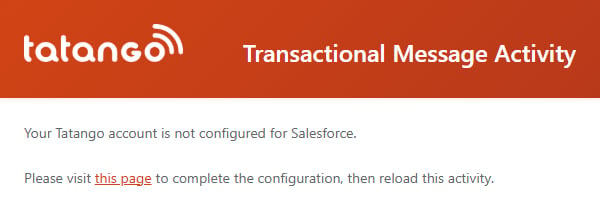
Click Save Configuration. Saving verifies the credentials against your SFMC account, and if a field is rejected the form indicates which one to correct.
Reload the activity in Journey Builder. Configuration is complete, and every user in your SFMC account can now use the activity. Next, send your first message.
Troubleshooting
The activity says your account is not configured for Salesforce
The activity says your account is not configured for Salesforce
This is the first-use state: complete the initial configuration, then reload the activity.
A credential is rejected when you save the configuration
A credential is rejected when you save the configuration
The form checks each value against your SFMC account and flags the field to fix. Re-copy the flagged value from the API Integration component summary (step 2), and make sure the Tatango API key is correct and enabled.
Journey validation recommends adding a message activity
Journey validation recommends adding a message activity
Expected: Journey Builder doesn’t recognize custom activities as messaging activities, so it shows a “Missing Message Activity” recommendation. It’s safe to ignore and doesn’t block activation.